
Making Sense of Zendesk Reporting (Without Losing Your Mind)
Thomas Hils · · 11 minutes read

Updated October 2026: Zendesk’s current prebuilt dashboards and datasets, how often Explore data refreshes, export and scheduling options, AI-powered quick reports, the coming removal of the live dashboard, and how to build the reports Explore can’t with Claude or ChatGPT.
If you’re a new customer of Zendesk, someone looking to up their game or even if you’re just shopping for the right customer support tool for your organization this article is designed to help you understand one of the key features of Zendesk: its reporting!
What Is Zendesk Reporting?
Zendesk is a powerful and popular customer service ticketing platform.
The Zendesk platform is made up of a number of modules that you can pick and choose to configure the service you need including Zendesk Support, Zendesk AI Agents, and more.
They are a longstanding player in the space with a mature and expansive feature offering popular with companies of all sizes and types.
Zendesk Explore is Zendesk’s reporting and analytics platform, and it’s your viewport into your customer experience—from the performance of your team to the happiness of your customers.
You’ll use it to measure the stuff that matters most to you: ticket volume, resolution times, individual agent performance, and CSAT. On Zendesk’s newer pages you’ll also see it called simply analytics.
Before you start running reports and building dashboards it helps to understand the foundations of how Zendesk reporting and analytics are built. There are two key pieces that make up Zendesk reporting experience:
Default Reporting Dashboards within Zendesk
Zendesk comes preconfigured with a number of dashboards built for support professionals out of the box with no configuration required.
These are a great place to start to both understand your organization and what is possible with Zendesk Reporting. As of October 2026, the prebuilt dashboards are:
- Zendesk Support – Tracks ticket metrics, agent activity, SLAs, satisfaction, and efficiency.
- Zendesk Messaging – Focused on async conversations across your messaging channels.
- Zendesk Chat – Reports on chat volume, agent performance, and visitor engagement. Zendesk is retiring Chat for accounts that can move to messaging.
- Zendesk Voice (formerly Talk) – Monitors call volume, wait times, agent availability, and call outcomes.
- Zendesk Knowledge (formerly Guide) – Measures Help Center performance like article views and searches.
- Zendesk AI: AI agents – Reports on how your AI agents handle conversations.
- Zendesk Copilot: Intelligent triage – Shows how intelligent triage classifies and routes your tickets.
- Zendesk omnichannel: Agent productivity and queues and Omnichannel routing: queues – Agent status, workload, and queues across channels.
- Live data (including messaging) and Live performance by channel – Real-time views of support metrics, which Zendesk is replacing (see below).
While these Zendesk reporting dashboards are helpful for learning, they are by default read-only. On Explore Professional and Enterprise (Suite Professional and above), you can make copies of these default dashboards and customize them. Explore Lite, which comes with Suite Team and Growth, lets you view and export them but not build your own.
Taking It to the Next Level: How to Run a Custom Report in Zendesk
Zendesk Explore is a fully featured reporting tool but you don’t have to be a data scientist to use it. It’s designed to empower you to actually see what’s going on in your support org.
It turns all your customer interaction data into charts, dashboards, and metrics you can slice up any way you want—by team, channel, tag, or whatever weird filter your VP wants this week.
Explore is an advanced reporting interface. Think of it as your data playground once you outgrow the default reports. It’ll allow you to create dashboards and reports, on Explore Professional or Enterprise:
- Reports: These are individual data queries. Each report tracks a specific trend or KPI. You build these in the report builder and then add them to dashboards. A report helps you answer a question like, “who solved the most tickets last week?”
- Dashboards: Pre-built or custom, dashboards let you organize related reports for a holistic view. Useful for execs, team leads, and individual contributors on your team. A dashboard helps you answer broader questions like, “what was the experience in the queue last week?”
Ask in Plain Language: AI-Powered Quick Reports
On Suite Professional and above, you can also ask for a report in plain language, such as “Which groups currently have the most unsolved tickets?”, then refine it with follow-ups like “Make that a pie chart”. You can open the result in the report builder to fine-tune it or add it to a dashboard.
Quick reports use the Support: Tickets dataset and historical data only, prompts are limited to 200 characters, and custom fields and calculated metrics aren’t supported.
Zendesk is also testing agentic analytics with an analyst copilot, which builds reports and dashboards from prompts. It’s in early access, with general availability promised for later in 2026.
Zendesk Explore Datasets
You’ll need to pick a dataset before building a report. Your dataset determines what kinds of information you’re pulling in and what you can learn.
Here’s a quick overview of the most common and important datasets to help you get started.
Support: Tickets
This is the bread and butter. It’s got all your ticket-level data: status, priority, tags, assignee, requester, channel, etc.
If you’re building dashboards to track ticket volume, SLAs, or backlog—start here. It also holds most of your CSAT metrics.
There’s no separate users dataset: details about requesters, organizations, and agents come as attributes inside the Support datasets. Handy when you’re trying to answer “who’s blowing us up the most?”
Support: Updates History
Every update to every ticket: status changes, reassignments, comments, and satisfaction ratings. Several of the recipes below, such as reopened tickets and bad ratings with comments, are built on it.
For the overall CSAT picture, the Zendesk Support dashboard has a Satisfaction tab, so you don’t have to start from scratch.
Support: SLAs
Only available if you’re using SLA policies. Shows whether tickets hit or missed their SLA targets, with timestamps and breach data. Support: Group SLAs does the same for group SLA policies.
It’s the one you show leadership when they want to know if the team’s “hitting goals.”
Messaging and Live Chat: Messaging Tickets
If you’re using Zendesk Messaging, this dataset gives you conversation-level detail—messages sent, reply times, resolution outcomes, etc.
Think of it as the chatty cousin to Support: Tickets.
Voice: Calls
Voice support data (formerly Talk). Call volumes, duration, wait times, etc. Great for proving why the phone queue needs another human being.
Knowledge: Knowledge Base and Search
Data on help center articles, such as views and votes, with help center searches in a separate Search dataset. Useful if you’re trying to figure out which docs are pulling their weight and which need a rewrite.
While Zendesk Explore enables some basic reporting on your knowledge base, it’s limited.
Zendesk apps like Help Center Analytics unlock a fuller, deeper understanding of how your help center is performing.

AI and Omnichannel
If you use AI agents, Copilot, or omnichannel routing, there are datasets for those too, such as Intelligent triage, Copilot suggestions, and Agent state.
Customizing Zendesk Reports
Zendesk reports are the building blocks of a dashboard. A report is intended to answer a single question or make sense of a trend. A report itself is made up of two key fundamentals.
Grasping these fundamentals empowers you to create the dashboards of your dreams (or your VP’s dreams, anyway).
To build great custom Zendesk reports, you need to know the difference between metrics and attributes:
- Metrics: These are the core data points you’re measuring. They’re measurable things like the number of solved tickets, first reply time, or CSAT scores from customers.
- Attributes: These are your filters and groupings. They slice your metric(s) into something more meaningful. Want to look at CSAT by agent or backlog by channel? You’ll do that with attributes.
Is It Possible for Reports to Auto-Populate Data?
Explore data refreshes on a schedule: every hour on Suite Professional and Enterprise, and once a day on Suite Team and Growth. You can export reports and dashboards as CSV, Excel, PDF, or an image, and schedule dashboards to go out by email.
Scheduling needs Explore Professional or Enterprise, and it’s dashboards you schedule, not single reports. If your stakeholders want a weekly snapshot, just set it and forget it. See Zendesk’s articles on data refresh intervals, exporting and scheduling.
For a truly real-time view, Professional and Enterprise plans have real-time monitoring: dashboards for incoming tickets, ticket progress, and agent productivity, with up to 30 days of history.
It replaces Explore’s live dashboard. Zendesk only shows the live dashboard to users who opened Explore before May 5, 2026, and is removing Explore’s live reporting on January 25, 2027.
Advantages and Disadvantages of Zendesk Reports
Zendesk has one of the most robust reporting platforms in the customer support space. You can track just about anything with it and feel confident you’ve got insight into every corner of your support ecosystem.
For some teams, that might be exactly what they need but for others the trade-offs just aren’t worth it.
Pros
- Fully flexible and incredibly powerful reporting.
- High value pre-built dashboards save time.
- Not walled in—reports can be exported and scheduled.
- Enables tracking by channel, org, tag, and more.
- Simple reports from a plain-language question (Professional and above).
Cons
- UI is clunky and difficult to learn for many users.
- Many advanced features are hidden behind permissions.
- Custom reports, scheduling, and hourly data need Professional or above.
- Reports work on ticket fields and events, so the detail in the conversations themselves stays out of reach.
Zendesk Report Use Cases
Zendesk reporting fills all kinds of needs for customer support teams of all sizes, but here are some common use cases that you may want to take advantage of. The recipes below build custom reports, so they need Explore Professional or Enterprise.
Service Level Agreement (SLA) Adherence
Zendesk offers a critical reporting recipe for understanding your organization’s adherence to SLAs. With it, you can see the distribution of your tickets across their SLA targets.
This gives leaders a striking view of your organization’s ability to deliver on your promises.

If managing SLAs effectively is a challenge, you may need to rethink how you’re setting and managing your Zendesk ticket priorities.
Workforce Management
If you’re leading a large team, it’s important to have insights into scheduling and staffing easily available at the tip of your fingers. Zendesk offers a robust set of reports that enable you to understand the movements and needs of your staffing quickly.
One powerful reporting recipe is for tracking agent status over time.
With the Zendesk WFM add-on, its own reports go far beyond that, enabling you to track metrics like the ones below.
- Scheduled Time.
- Total Time.
- Attendance duration.
- Occupancy rate.
- Unpaid general task or status.
- Late occurrences.
- Late duration.
- Left Early occurrences.
- Left Early duration.
- Overtime occurrences.
- Overtime duration.
Re-opened Ticket Tracking
If your team is striving for one-touch tickets, which are support interactions resolved by a single reply from your team, you’ll need to track ticket re-openings by your end users.
Trend Spotting
Ticket tags are a powerful way to understand trends in your customer interactions, but only if you have your reporting set up to make that possible.
This report recipe teaches you how to create “groups” of similar tags that enable you to report on issues at a higher level and help you spot trends even faster.
For example, you might make groups of tags that reflect a piece of your product (invoices, and payments grouped together as billing) or you might make groups that reflect subjective experiences like customer pain points.
Ticket Volume Forecasting
Zendesk Explore can even help you understand the future — though it is only basing its predictions on the past!
Still, accurately forecasting Zendesk ticket volume is a critical part of planning your team’s work and growth, and this report recipe helps make that forecasting process significantly easier.

If your forecast shows a large volume of tickets or if you know your team is going to fall behind, you may need to focus on reducing your ticket backlog.
Unearthing Customer Sentiment
CSAT is a great opportunity to understand the experience your customers are having, but often folks focus on the number alone.
You can create a report with this Zendesk recipe that surfaces negative CSAT scores that include a comment, allowing you to hone in exactly what wasn’t working for your customers.
Custom CX Reports From Live Data, With Claude or ChatGPT
Explore is built around metrics and attributes. Some questions don’t fit that shape: why customers got in touch this week, what unhappy customers wrote in their CSAT comments, or how your largest accounts’ experience compares with everyone else’s.
An AI assistant connected to Zendesk can answer those. You describe the report you want in plain words, and the assistant builds it from your live Zendesk data, reading the tickets and comments where a metric isn’t enough.
We build one way to do this, the Swifteq MCP Server for Zendesk. It connects Claude, ChatGPT and other AI assistants to Zendesk, and can pull your support KPIs, CSAT ratings and comments, and the ticket conversations themselves, so one report can combine the numbers with the reasons behind them. For example:
- “Give me a one-page weekly report: ticket volume, first reply time, the top five contact reasons and what changed since last week.”
- “Compare resolution times and CSAT for our enterprise customers with everyone else.”
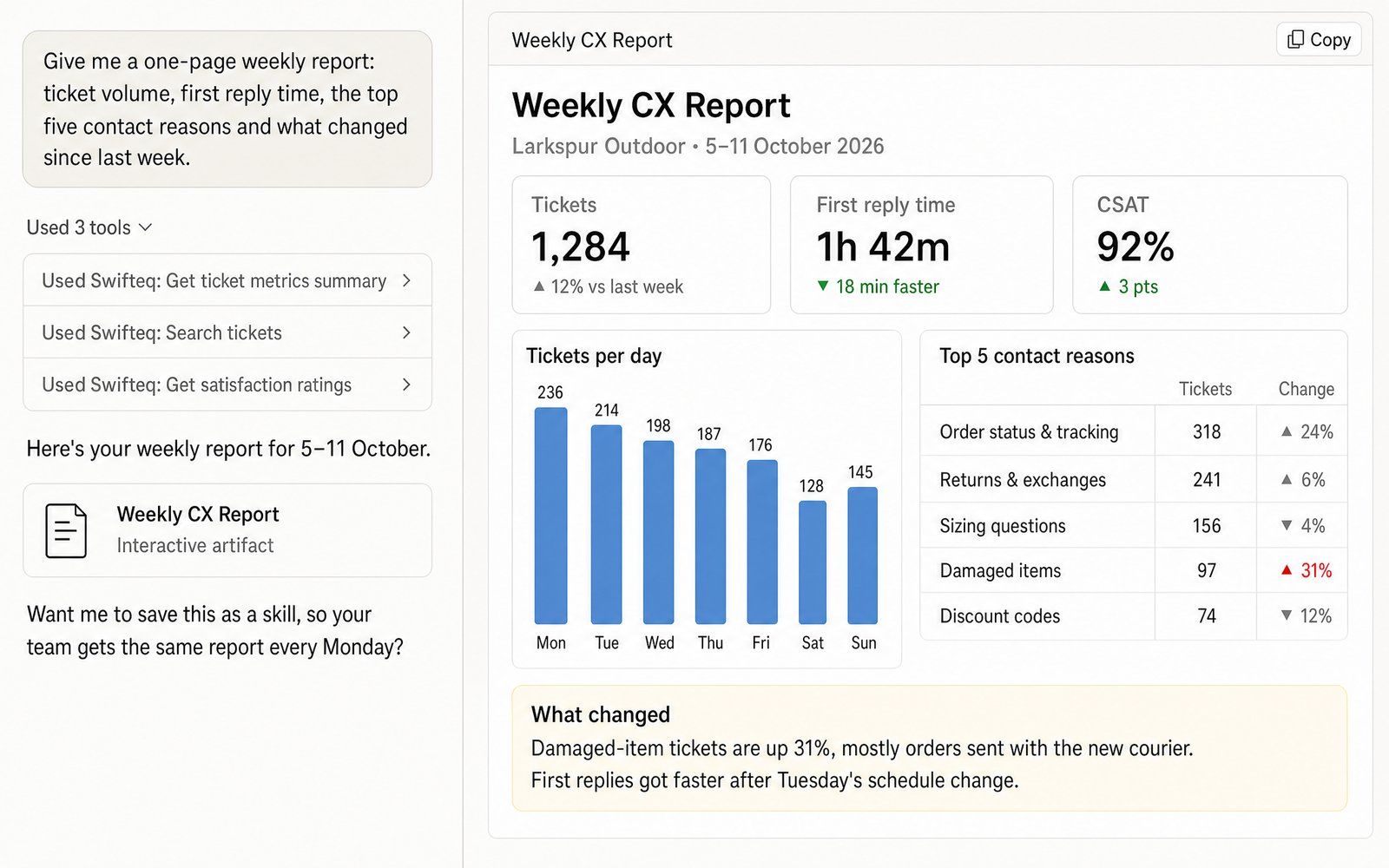
Make it a one-page summary for leadership or a live dashboard for the team. Once it’s right, turn it into a Claude skill, so anyone on the team gets the same report from a single prompt.
It doesn’t replace Explore: SLA achievement, for example, isn’t available through it. It’s read-only unless you allow changes, and it doesn’t store your ticket data. It’s free for 500 calls a month per Zendesk account, and the Team plan is €49 a month for your account and its first user, plus €9 a month for each extra user.
Putting It Together to Create Great Zendesk Reporting
You’re now ready to dive into Zendesk and start reporting. Whether you’re happy to work from the default dashboards or you’re itching to crack them open to see how they work, Zendesk reporting has the capacity and flexibility to help you.
Don’t be afraid to click every filter, or adjust your metrics and see what happens. Learning is messy. Adjust, filter and play with reports until you’ve got a dashboard that answers the questions that are important to your support organization.
Enhance your team’s productivity and make their lives easier with Swifteq’s suite of Automation, Help Center and Agent-Assist Zendesk® apps. Start your 14-day free trial today or ask for a demo.